Why Accessibility Matters More Than Ever in Midnight
Midnight isn’t just “another expansion.” It’s part of a broader shift in how Blizzard wants WoW to be played: less dependence on external combat automation tools and more reliance on a strong, readable, customizable base UI.
That shift has a big accessibility impact. For years, many players (including disabled players) relied on addons to do one of two things:
- Presentation help: show the same information in a clearer way (larger icons, better colors, better placement, cleaner sorting)
- Decision help: interpret combat state and tell you what to do (countdowns, logic-driven warnings, complex triggers)
Midnight draws a much firmer line against the second category, while aiming to massively strengthen the first category inside the game itself. The goal is not to reduce accessibility—it’s to make accessibility and clarity a default part of WoW, so you don’t have to “earn” basic readability by installing a complicated addon stack.
If Blizzard lands the execution, Midnight becomes more approachable for:
- new players who don’t even know which addons are “required”
- returning players who don’t want to rebuild their UI from scratch
- players who can’t comfortably process fast visual clutter
- players who need strong audio cues or strong visual redundancy
- anyone who wants the game to feel clean and understandable
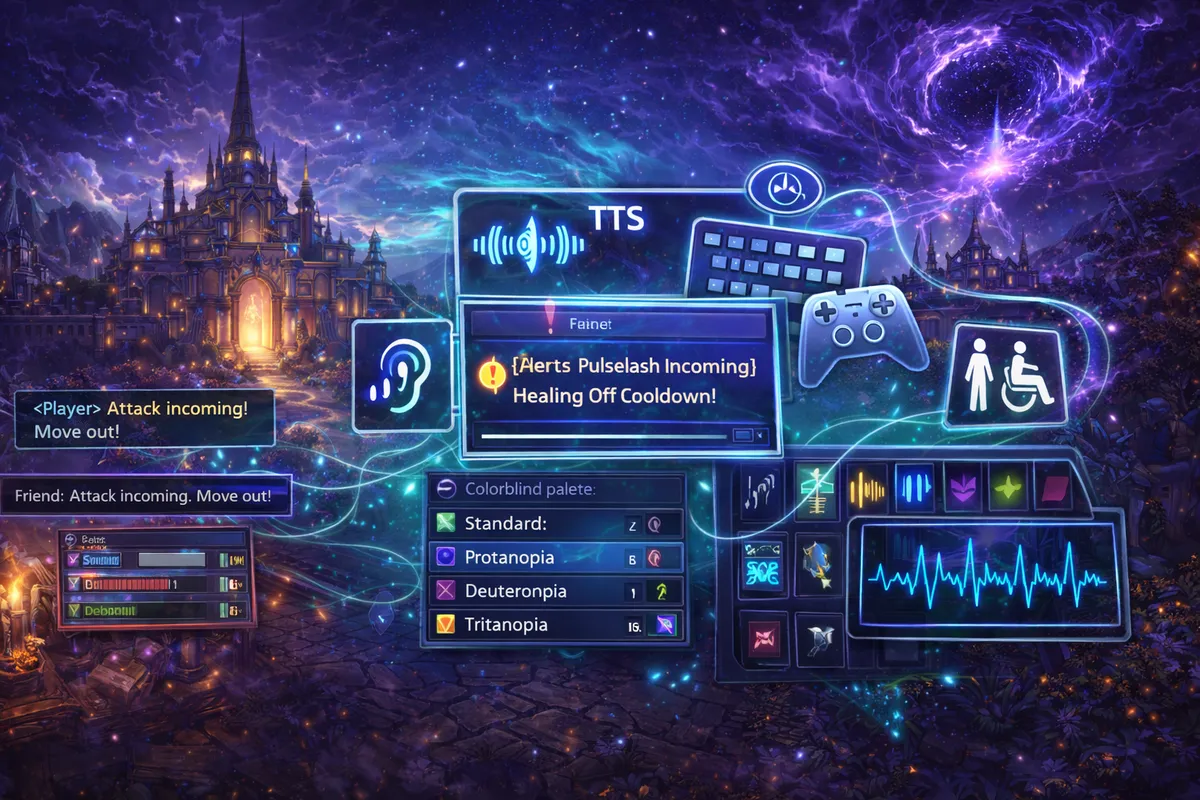
What’s New and Improved in Midnight
Here’s the headline list of accessibility-relevant changes Blizzard has described for Midnight testing and launch direction:
- A new Combat Audio Alerts system (TTS + other audio cues) for key combat events
- Built-in Boss Warnings / Boss Alerts with a timeline of major boss abilities and targeted alerts
- Improved raid frames with multiple layouts, clearer dispels, visibility for major defensives, and clearer role-specific debuffs
- Improved nameplates with better buff/debuff displays and a clearer “important lethal cast” state, plus PvP crowd-control highlighting
- A more powerful Cooldown Manager, including profiles, sound alerts, target debuff tracking, and external defensive tracking
- A redesigned Personal Resource Bar as a customizable HUD element (better placement, scaling, transparency)
- Built-in Damage Meters tracked server-side for improved accuracy in key situations
- Continued support for existing accessibility features (TTS/STT, chat readouts, colorblind options, UI customization) that pair even better with Midnight’s new baseline UI
Now let’s go through each major area in a practical way.
Combat Audio Alerts: The Biggest Accessibility Upgrade in Midnight
If there’s one feature that could genuinely change who can comfortably play high-action WoW content, it’s Combat Audio Alerts.
Blizzard has described Combat Audio Alerts as a new accessibility feature in Midnight that builds on existing Text-to-Speech support, letting you enable voice alerts (and other audio cues) for important combat events. Examples Blizzard has explicitly mentioned include:
- announcing when combat begins and ends
- announcing your health and resources at regular intervals
- playing sounds when you gain or lose a secondary resource (like combo points)
- announcing your target’s name and health
- additional alerts for other important combat events
This matters because audio is one of the strongest ways to reduce visual overload. It gives you a second channel of information—so you’re not forced to stare at tiny bars and icons while the screen is exploding.
Why Combat Audio Alerts helps even if you don’t consider yourself “disabled”
Accessibility features often become “quality-of-life” wins for everyone. Combat Audio Alerts can help you if you:
- get overwhelmed by clutter in raids, Mythic+, or large PvP fights
- struggle to notice when you’re low health until it’s too late
- miss resource changes while focusing on mechanics
- want fewer UI elements on screen but still need key info
- play on a smaller monitor or at lower resolution
- get fatigued from constant visual scanning
Customization: voice, speed, and volume
Blizzard has said the system will include options like voice selection, speech speed, and volume, and these options will live under the game’s Accessibility settings. That’s important: accessibility tools only work when they can be tuned to your needs. A voice that’s too fast, too loud, or too “robotic” can be worse than silence.
What to watch for during beta/pre-patch
In Midnight testing discussions, players have asked for Combat Audio Alerts to integrate more deeply with:
- boss warnings and timeline events
- buff/debuff changes, not just raw spell cooldown states
That’s the real “dream setup” for low-vision clarity: audio that tells you the most important changes at the right time, without spamming you with noise.
Practical setup goals
When you configure Combat Audio Alerts, aim for:
- actionable alerts (they cause you to do something)
- predictable pacing (so you don’t get startled or overwhelmed)
- redundancy with visuals (audio confirms what you might miss visually)
A good accessibility setup doesn’t shout everything—it whispers the few things that matter most.
Boss Warnings and Timelines: Built-In Encounter Guidance
For many players, the hardest content isn’t hard because of raw damage—it’s hard because of information timing. Boss mods have historically filled that gap by giving warnings and timers. Midnight moves this into the base game.
Blizzard has described a built-in Boss Warnings / Boss Alerts system that shows a timeline of major critical boss abilities, provides alerts when you’re targeted, and supplies the key information you need to respond during encounters.
Why this is accessibility-relevant
Boss mods were never just “convenience.” They were also:
- a cognitive aid (reduces memory load)
- a reaction aid (gives predictable timing)
- a learning aid (helps you understand what matters)
- a fairness aid (players without mods weren’t punished as hard)
If Midnight’s boss warnings are readable and adjustable, this becomes a built-in accessibility layer—especially for players who:
- struggle with fast visual pattern recognition
- need more predictable cues to react
- experience attention overload during overlapping mechanics
- need consistent warning formats across encounters
The best-case outcome
The best version of Boss Warnings is:
- a clear preview of what’s coming
- a strong “you are targeted” alert
- minimal clutter
- enough customization to fit different needs (size, placement, sound integration, and presentation options)
Why Blizzard’s addon approach matters here
Blizzard has also said addons will still be able to present boss warning info in different ways (like countdown bars), as long as they aren’t using combat state to run custom decision logic. That’s a big deal for accessibility, because players have different needs:
- some need large bars
- some need timelines
- some need bold icons
- some need screen-center alerts
- some need audio redundancy
The promise is: the base game provides the information, and presentation can still be personalized.
Raid Frame Improvements: Better Healing Clarity and Dispel Visibility
Healers (and anyone responsible for dispels and external defensives) often have the highest “UI burden” in the entire game. If raid frames are unclear, healing becomes exhausting—or impossible.
Blizzard has described several raid frame improvements targeted directly at the problems players have historically solved through addons, including:
- a setting to choose from three different layout configurations for information placement on each player frame
- making dispels (Magic, Poison, Curse, Disease) bolder and easier to notice, including color and border visualizations
- adding support to display when a player has a major defensive or similar ability active
- making role-specific debuffs (like tank swap debuffs) larger for players who need to react to them
Why these changes matter
These upgrades target three classic accessibility pain points:
- Perception: “I didn’t see the dispel.”
- Prioritization: “I can’t tell what matters most.”
- Speed: “I needed to react faster than the UI allowed.”
If you heal (or want to learn healing), these changes can reduce the need for a heavy addon setup and make the baseline experience more approachable.
Practical raid-frame goals for accessibility
Whether you’re healing or just want clearer party frames, aim for:
- dispels that are visible instantly (not hidden in icon soup)
- important debuffs that are larger than unimportant debuffs
- defensive states that are readable at a glance
- a consistent layout you don’t have to “re-learn” mid-fight
Even if you don’t heal, better frames help everyone—because mechanics often require you to notice when teammates are affected.
Nameplate Improvements: Important Casts, Cleaner Debuffs, and PvP CC Highlighting
Nameplates are one of WoW’s most “make-or-break” UI elements, especially in Mythic+ and PvP. Midnight aims to raise the baseline quality dramatically.
Blizzard has described nameplate improvements that focus on:
- better visibility and customization of buff/debuff displays on nameplates
- calling out important lethal casts in a more obvious way
- PvP nameplates highlighting crowd-control effects during combat
In addition, Blizzard has described an “important cast” state that can be made brighter and given a flash animation in the base UI, with addons allowed to adjust how that important-cast state is displayed.
Why “important cast” highlighting is accessibility
This is one of the clearest examples of accessibility as fairness. In high-density pulls, the hardest part isn’t “can you interrupt,” it’s “can you see what must be interrupted.”
Good important-cast highlighting helps:
- players with low vision (bigger, brighter state)
- players with attention overload (clear priority signal)
- players with slower visual processing (less searching)
- all players in chaotic pulls (less guessing)
PvP crowd-control highlights
CC awareness is huge in PvP, and it’s also an accessibility challenge. If the UI highlights CC effects more clearly, players can understand what’s happening faster—even if they miss an animation or a small debuff icon.
Practical setup goal
Your ideal nameplate setup is one where you can answer these instantly:
- Which enemy is casting something dangerous?
- Who is crowd-controlled?
- Which target is low health?
- Which enemy has key buffs/debuffs?
If you can answer those questions in one glance, your UI is doing its job.
Cooldown Manager: Tracking That Fits Your Brain
Cooldown tracking is a classic cognitive overload trap: too many abilities, too many tiny icons, too many places to look. Blizzard’s Cooldown Manager is being expanded in Midnight to reduce reliance on complex external trackers.
Blizzard has described Cooldown Manager improvements including:
- selecting which auras you want to track
- adding debuff states for your selected target
- tracking active external defensives on teammates (example given: Ironbark)
- saving different profiles
- setting up sound alerts to call things out
Why this is accessibility, not just “convenience”
Cooldown clarity is the difference between:
- proactive defensive play vs panic reactions
- clean rotation flow vs staring at bars
- learning a spec vs feeling like you’re drowning in icons
Profiles matter because different content needs different tracking:
- raids: big cooldown planning, boss phases
- Mythic+: frequent interrupts and defensives, short cooldown loops
- PvP: burst windows, CC chains, trinket tracking
- solo/delves: self-sustain and utility more than strict min-max
Best practice for building your tracker
The fastest way to make Cooldown Manager useful is to keep it small. Track:
- your interrupt
- your primary defensive
- your biggest offensive cooldown
- one or two “utility” buttons you often forget
- key resource-related auras if your spec depends on them
When your tracker is compact and consistent, it becomes supportive instead of distracting.
Personal Resource Bar as a HUD: Cleaner Focus, Less Clutter
Blizzard has described an upgrade to the Personal Resource Bar so it becomes a true HUD element rather than a floating nameplate that can get lost behind other effects. You’ll be able to customize it in Edit Mode—moving it, scaling it, and changing transparency.
This is a small-sounding change that can have a big accessibility payoff:
- resources and health become more readable without relying on tiny default bars
- you can place key info near your natural eye focus
- you can reduce the need to look at multiple corners of the screen
Practical setup goal
Put your most important “self info” (health, resource, core cooldowns) in a stable area near your center screen. The less your eyes travel, the easier it is to react.
Built-In Damage Meters: Learning Without Extra Tools
Blizzard has described adding Damage Meters to the base UI in Midnight, tracked server-side for higher accuracy in certain situations compared to addon-based meters.
From an accessibility and new-player friendliness perspective, built-in meters matter because they reduce setup barriers:
- you can test talents and gear without installing extra tools
- you can learn basic performance feedback without adding UI noise
- groups become less likely to gatekeep based on “do you have the addon?”
Even if you never care about parsing, built-in performance feedback helps you answer basic questions like:
- Did that talent change help?
- Did that trinket actually do something?
- Am I contributing enough to feel comfortable in groups?
Existing Accessibility Features That Pair Perfectly With Midnight
Midnight’s new systems build on accessibility work WoW already has, especially around Text-to-Speech and transcription.
Depending on your needs, these existing options can be just as important as the new Midnight features:
- Transcribing voice chat (speech-to-text) so spoken comms become readable
- Reading chat text out loud (TTS narration for chat)
- Adjusting rate of speech and voice options for TTS
- Expanding accessibility options through slash commands (helpful for players who can’t comfortably navigate menus)
Colorblind tools and UI redundancy options also matter a lot in content where colors carry meaning.
The best approach is to treat accessibility like a toolkit: you combine the pieces that solve your specific problems.
Practical Setup Guides by Need
Below are “starting point” setups. You don’t have to match these perfectly—use them as a first pass, then adjust based on comfort.
Low Vision Setup
Goal: maximize clarity with minimal scanning.
- Enable Combat Audio Alerts for health, target health, and key combat events
- Use Boss Warnings and keep them in a predictable location (near center but not covering your character)
- Increase UI scale enough that frames and nameplates are readable without leaning in
- Configure raid frames so dispels and role-specific debuffs stand out strongly
- Make nameplates prioritize important casts (use the stronger important-cast state)
- Limit visual noise: reduce spell density in group content so mechanics and UI remain readable
- Keep a compact cooldown tracker with sound alerts for your top 3–5 buttons
Colorblind / Color-Sensitivity Setup
Goal: reduce reliance on color-only meaning.
- Turn on UI colorblind modes and tooltip redundancy options where available
- Prefer border + icon shape differences over subtle color shifts
- In raid frames, rely on bolder dispel indicators and borders rather than faint color changes
- In nameplates, favor brightness/animation states (important casts) over color-only cues
- Consider adding audio redundancy (Combat Audio Alerts) for “must react” states so you’re not depending on color at all
Hearing Differences Setup
Goal: make critical information readable visually without relying on sound.
- Use Boss Warnings/timelines as your primary mechanic timing tool
- Increase the size/visibility of targeted alerts
- Place key trackers in stable positions (cooldowns, resources, important debuffs)
- Strengthen visual signals: important cast state, larger debuff indicators, clearer raid-frame layouts
- Consider transcription features for voice chat so callouts become readable text
- Keep your UI clean so your eyes can catch changes quickly
Cognitive Overload / ADHD / High-Clutter Sensitivity Setup
Goal: reduce simultaneous inputs and turn chaos into a small set of priorities.
- Use Boss Warnings as “what matters now” guidance—avoid tracking every minor thing
- Use Combat Audio Alerts sparingly: only the most actionable alerts (low health threshold, targeted mechanics, combat start/end if helpful)
- Reduce spell density in group content (clarity often improves performance and stress)
- Keep nameplates simple: important casts should pop, everything else should be quieter
- Use Cooldown Manager profiles: one for raids, one for Mythic+, one for solo
- Avoid over-stacking trackers—one strong tracker beats three overlapping trackers
Mobility / Motor Limitations Setup
Goal: reduce rapid input complexity and keep essentials reachable.
- Use Assisted Highlight and/or Single-Button Assistant for rotation support if it helps reduce strain
- Consolidate keybinds so interrupts/defensives are easy to reach
- Use Combat Audio Alerts to reduce the need to visually hunt for state changes
- Use stable HUD placement so you can keep eyes near center while moving
- Build a small “panic toolkit” (one defensive, one heal/mitigation, one movement tool) and keep it consistent across characters
Motion Sensitivity Setup
Goal: reduce camera and visual discomfort.
- Reduce camera shake and intense screen effects where possible
- Avoid excessive post-processing-like visuals that cause discomfort
- Keep UI stable; avoid floating elements that pop in and out unpredictably
- Use audio or text cues as redundancy so you don’t rely on intense visuals to react
Accessibility and the Addon Changes: What Still Works
A lot of players worry that “addon restrictions” automatically means “accessibility gets worse.” Midnight’s goal is the opposite: limit combat decision automation while keeping UI customization alive—and while building native tools for the biggest accessibility gaps.
Blizzard has described the concept like this:
- addons should still be able to change how information is presented (size, shape, color, location, style)
- addons should not be able to read and process real-time combat state to drive decision logic
- Blizzard will continue building native solutions (boss warnings, cooldown manager, raid frame improvements, combat audio alerts, etc.)
For accessibility, the best-case outcome is:
- you still customize presentation heavily
- you rely less on “logic-based” addon scripts
- the base UI becomes good enough that you can play comfortably even if you prefer minimal addons
Accessibility in Real Content: Raids, Mythic+, Delves, and PvP
Accessibility doesn’t matter in a menu—it matters when you’re under pressure.
Raids
What matters most:
- boss warnings/timeline readability
- targeted alerts clarity
- raid frame dispel visibility
- role-specific debuff sizing
- audio or visual redundancy for key mechanics
Mythic+
What matters most:
- important cast recognition on nameplates
- interrupt priority clarity
- compact cooldown tracking with sound cues
- reduced visual clutter in big pulls
- readable ground effects and mechanics (never sacrifice “seeing danger” for UI aesthetics)
Delves and Solo Progress
What matters most:
- personal resource HUD clarity
- manageable UI that supports learning
- optional assisted tools that reduce input complexity
- audio alerts for state changes so you can focus on movement and positioning
PvP
What matters most:
- CC state visibility (nameplate and/or frames)
- burst window clarity (your cooldowns, enemy pressure cues)
- readable targeted alerts
- transcription tools if voice comms are part of your play
- a UI that reduces the feeling of “everything happened at once”
Troubleshooting: When Accessibility Tools Don’t Feel Good
If you turn on accessibility features and feel worse, that doesn’t mean they’re bad—it usually means they need tuning.
If Combat Audio Alerts feel overwhelming
- reduce the number of enabled alerts
- slow down speech rate
- lower volume relative to game audio
- keep only “actionable” alerts (low health, targeted mechanics, resource thresholds)
If you still miss dispels
- switch raid frame layout options
- increase UI scale for frames
- reduce how many buff/debuff icons show if possible so dispels don’t drown
- rely on bolder borders and role-specific sizing
If you can’t see important casts
- adjust nameplate scaling and spacing
- prioritize the important-cast highlight state
- reduce overall visual noise (spell density) so the highlight stands out
- keep enemy cast bars readable (don’t shrink them to “look clean”)
If your screen feels too busy
- remove duplicate trackers
- pick one “home” location for key info (center-left or center-bottom is common)
- keep consistent placement across characters
- use sound cues for a small number of key events so you can simplify visuals
The golden rule: every UI element should earn its place. If it doesn’t help you make a decision, it’s probably clutter.
BoostRoom: Accessibility-Friendly Progress Without the Setup Stress
Midnight’s accessibility upgrades are powerful—but the best tools still need smart setup. If you’ve ever felt stuck because your UI is confusing, or because group content moves too fast, you’re not alone.
BoostRoom helps you turn Midnight’s tools into a setup that actually works for you:
- build a clear, readable UI using Midnight’s upgraded base features
- reduce reliance on complicated addon stacks
- create a simple weekly plan that matches your pace and your goals
- improve comfort and confidence in raids, Mythic+, Delves, or PvP without burning out
The best accessibility outcome isn’t just “I can play.” It’s “I can play comfortably and progress consistently.”
FAQ
What is the biggest new accessibility feature in WoW Midnight?
Combat Audio Alerts. Blizzard has described a new system that uses Text-to-Speech and other audio cues to announce key combat events like health/resources, combat start/end, and target info.
Will Midnight help players who struggle with visual clutter in raids and Mythic+?
That’s one of the main goals. Built-in boss warnings, improved nameplates with important cast states, stronger raid frames, and better cooldown tracking are all aimed at improving clarity without requiring external tools.
Are addons being removed in Midnight?
No. The direction is to limit combat decision automation, while still supporting UI customization and alternative presentation of information.
What’s changing for healers specifically?
Raid frames are getting new layout options, clearer dispel visibility, support for showing major defensives, and larger role-specific debuffs—intended to reduce reliance on raid-frame addons for basic clarity.
Can I make the boss warnings look different if I need a different format?
Blizzard has described that addons should still be able to present boss warning information differently (like bars instead of a timeline), as long as they aren’t using combat logic to make decisions.
Do I need to use Combat Audio Alerts to benefit from Midnight?
No. They’re optional. Midnight’s biggest benefit for many players will be improved baseline visuals: boss warnings, raid frames, nameplates, and cooldown tracking.
I’m new or returning—what’s the simplest accessibility-friendly setup?
Start with a clean base UI, enable only the cues you truly need (one or two audio alerts, boss warnings, compact cooldown tracking), and keep your screen uncluttered. Add complexity only if you feel you’re missing information.
How can BoostRoom help with accessibility?
BoostRoom can help you build a stable, readable UI and a progression plan that fits your pace—so you spend less time struggling with setup and more time enjoying and improving.



