Why “Lag” Happens: The 5 Types You Must Separate
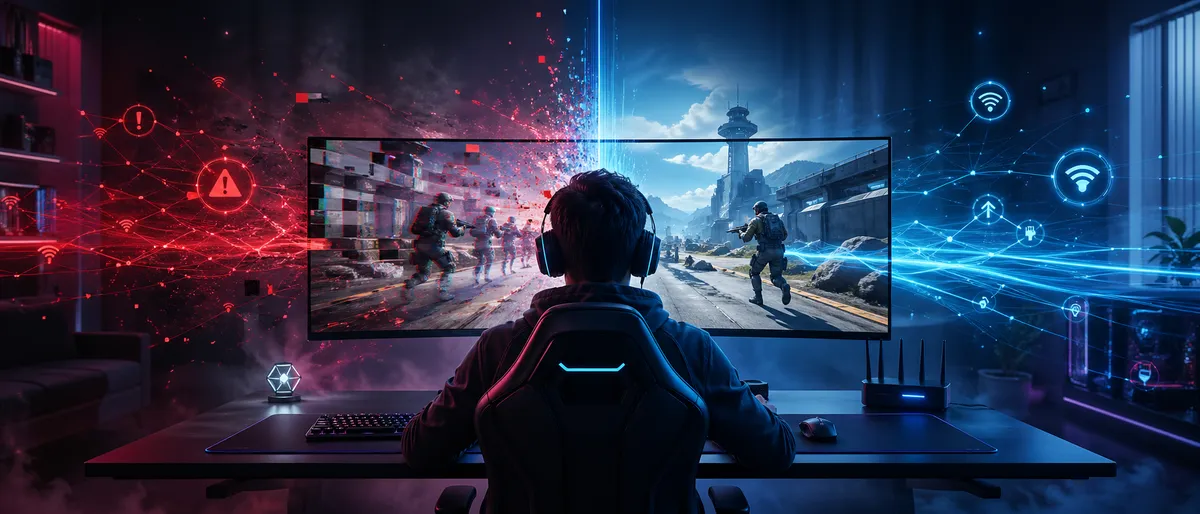
Most players use “lag” as one word, but there are five different problems that feel like lag. If you fix the wrong one, nothing improves.
1) High latency (high ping)
Your actions reach the server late. Everything feels delayed—like you’re playing slightly in the past.
2) Jitter (unstable latency)
Your ping jumps up and down. Even if the “average” ping looks okay, the spikes make fights feel unpredictable.
3) Packet loss
Some data never arrives (or arrives too late). This causes rubber-banding, teleporting enemies, missed hit registration, and random-feeling movement.
4) Congestion/bufferbloat (lag spikes when the network is busy)
Your internet speed might be “fast,” but when someone streams, downloads, or uploads, your latency explodes. This is one of the most common “my ping is fine until…” problems.
5) Performance stutter (FPS drops that look like lag)
Your network is fine, but your device stutters. Your screen freezes for tiny moments and it feels like the game lagged—especially during fights.
The most important rule: diagnose first, then fix. This guide makes that simple.
The 60-Second Lag Diagnosis (Do This Before Changing Anything)
Answer these questions quickly. Your answers usually point to the real cause.
A) Does the lag happen in every online game, or only one game?
- Every game: likely your connection, router, Wi-Fi, or device.
- One game only: could be that game’s servers, region, routing, or settings.
B) Does lag get worse at specific times (evening, weekends, late night)?
- Yes: often ISP congestion or busy local networks.
- No: more likely Wi-Fi interference, device issues, or background apps.
C) Does lag spike when someone else uses the internet (YouTube, Netflix, downloads, uploads)?
- Yes: classic bufferbloat/congestion problem.
D) Do you see rubber-banding or teleporting?
- Yes: packet loss or unstable Wi-Fi is likely.
E) Does your FPS drop or stutter during fights?
- Yes: performance stutter, not network lag (or both).
F) Does it happen only on Wi-Fi but not on mobile hotspot or Ethernet?
- Yes: Wi-Fi interference or router placement/settings.
Keep those answers in mind. Now you’ll apply fixes in the right order.
Quick Fixes That Often Work Immediately (10 Minutes or Less)
These are the highest-impact “try this first” fixes. They solve a surprising amount of lag without deep tech.
1) Restart the network the right way (power cycle)
- Turn off the console/PC.
- Unplug modem and router power for about 30 seconds.
- Plug in modem first → wait until fully online.
- Plug in router → wait until stable.
- Turn your device back on.
This clears temporary routing problems, stuck buffers, and some Wi-Fi glitches.
2) Stop all downloads and uploads on every device (for testing)
Even one background upload (cloud backup, video upload, system update) can cause lag spikes—especially on slower upload connections.
3) Switch to Ethernet (even temporarily) to isolate the cause
If Ethernet fixes it, your problem is almost certainly Wi-Fi instability or interference.
4) Move closer to the router (temporary test)
If lag improves when you’re closer, your Wi-Fi signal quality is a big part of the issue.
5) Change server region to the closest one (if the game allows it)
Sometimes you’re being placed in a farther region due to matchmaking, party members, or low population. Testing the closest region helps.
6) Turn off “low power” or “battery saver” modes while gaming
On laptops and phones, power saving can cause performance stutter and Wi-Fi behavior changes.
If these quick fixes help, you already know where to focus. If not, continue.
The Real Goal: “Stable Connection” Beats “Fast Internet”
A common myth is: “I need faster internet.”
For online gaming, the truth is: you need stable internet.
A stable gaming connection means:
- low packet loss (ideally 0%)
- low jitter (ping doesn’t jump around)
- reasonable latency for your region
- no congestion spikes when the network is busy
You can have extremely high download speed and still have terrible lag if your upload is congested, your Wi-Fi is unstable, or your router buffers too much.
Step 1: Tell Network Lag Apart From FPS Stutter
Before you change router settings, confirm whether the “lag” is actually device stutter.
Signs it’s mostly network lag
- rubber-banding
- enemies teleporting
- “delayed” actions even when FPS is stable
- spikes in the game’s network graph
- voice chat cutting out during spikes
Signs it’s mostly FPS stutter
- the whole screen freezes briefly
- stutter happens during explosions/fights
- FPS drops correlate with “lag moments”
- offline modes also feel choppy
What to do
- Turn on the game’s performance and network stats (if available).
- Watch FPS and ping/jitter/packet loss during a lag moment.
- If FPS drops hard, fix performance first. If ping spikes or packet loss appears, fix network first. If both happen, fix network stability and performance.
Step 2: Fix Wi-Fi Lag the Right Way (Not Randomly)
Wi-Fi is the #1 cause of “mystery lag” because it’s affected by distance, walls, interference, and crowded channels. Wi-Fi can look fine for browsing and still be bad for gaming because gaming needs consistent delivery, not just speed.
Use the best Wi-Fi band for gaming
2.4 GHz
- Longer range, passes through walls better
- More crowded (many devices use it)
- More interference
- Often more jitter
5 GHz
- Faster, usually lower interference
- Better for gaming when you’re in range
- Shorter range than 2.4 GHz
6 GHz (Wi-Fi 6E/7)
- Often the cleanest and most stable if supported
- Great for short-range gaming
Practical rule
If your device and router support it, prefer 5 GHz or 6 GHz for gaming—especially if you’re reasonably close to the router.
Router placement: the low-effort fix that works
If your router is:
- inside a cabinet
- behind a TV
- low on the floor
- far away behind several walls
…your Wi-Fi will struggle.
Better placement
- higher up (shelf height)
- more central in the home
- away from thick walls and metal objects
- not next to microwaves or crowded electronics
Even moving the router a few feet can improve stability.
Reduce Wi-Fi interference
Common interference sources include:
- microwave ovens
- cordless phones (older types)
- baby monitors
- Bluetooth-heavy environments
- crowded apartment buildings with many networks
Quick tests
- If lag spikes happen when someone uses the microwave, that’s interference.
- If lag is worse in one room than another, signal strength/interference is likely.
Fix options
- move router location
- use 5 GHz/6 GHz
- change Wi-Fi channel (next section)
- use a wired connection to the gaming device if possible
Change Wi-Fi channels (simple concept, big impact)
In crowded areas, your router may be fighting other routers on the same channel. This creates instability.
Best approach
- If your router supports auto channel switching, keep it enabled.
- If not, test a different channel in router settings (especially on 2.4 GHz).
If you’re under 18, ask a parent/guardian before logging into router settings.
Mesh systems and extenders: what actually helps
Extenders/repeaters
- can increase range
- often add latency and instability if poorly placed
Mesh Wi-Fi
- usually better than random extenders
- still requires good placement and backhaul quality
Best solution
If you need extra coverage, the best gaming outcome is:
- a mesh system with strong backhaul, or
- a wired access point, or
- Ethernet to the gaming device
If you must use a mesh node, place it where it still has a strong signal to the main router—not at the edge of the house where signal is already weak.
Step 3: Fix Bufferbloat (The #1 Cause of “Lag Spikes When Someone Streams”)
If your lag spikes happen when anyone in the home streams video, uploads files, uses cloud backup, or downloads large updates, the problem is often bufferbloat—your router or modem buffering too much traffic, creating huge latency and jitter.
Bufferbloat is basically “your internet line is busy, so your router stacks packets in a long waiting line.” That waiting line is what you feel as lag spikes.
How to recognize bufferbloat without special tools
You likely have bufferbloat if:
- your ping is okay when nobody is using the internet
- your ping becomes awful when someone starts streaming or downloading
- your game feels fine, then suddenly becomes unplayable for 10–60 seconds
- voice chat cuts out during those moments
The practical fix: QoS or Smart Queue Management (SQM)
Many routers include:
- QoS (Quality of Service)
- Smart Queue / Smart Queue Management
- “Gaming priority”
- traffic shaping
These features help prevent your network from filling buffers and causing latency spikes.
The important detail
For bufferbloat control to work well, you often need to set your router’s “max bandwidth” slightly below your real speed, so the router controls the queue instead of your modem/ISP equipment.
Common working range
Set bandwidth limits around 85–95% of your real measured upload and download (upload is often the bigger problem).
If you’re under 18, ask a parent/guardian before changing router QoS/SQM settings.
If your router does not have SQM/QoS (no worries)
You can still reduce lag spikes with “behavior fixes”:
- pause cloud backups while gaming
- schedule big downloads at night
- avoid uploading videos while gaming
- disable automatic updates during play sessions
- ask others to avoid heavy uploads during ranked
This isn’t as good as SQM, but it works surprisingly well.
Upload is the silent lag killer
Many internet plans have fast download but limited upload. When upload gets saturated (video calls, uploads, cloud sync), it causes massive lag.
Simple home rule
During competitive gaming, avoid:
- uploading large files
- cloud photo/video backup
- live streaming from the same network
Step 4: Reduce Packet Loss (Rubber-Banding Fixes That Matter)
Packet loss is often why:
- you rubber-band backward
- enemies “skip”
- hits don’t register
- your character feels like it’s fighting your inputs
Packet loss can come from:
- weak Wi-Fi signal
- interference
- unstable router/modem
- ISP line issues
- damaged cables
- overloaded home network
Fix packet loss in this order
1) Switch to Ethernet
This is the fastest way to eliminate Wi-Fi packet loss.
2) Replace questionable cables
A bad Ethernet cable can cause errors and instability. A fresh cable is an easy test.
3) Improve Wi-Fi signal
- move closer to router
- use 5 GHz/6 GHz
- reduce interference
- reposition router
4) Reduce congestion
Bufferbloat can behave like loss because delayed packets arrive too late to matter.
5) Contact ISP if packet loss persists
If packet loss happens even on Ethernet with minimal network load, the issue may be outside your home (line quality, modem signal, congestion).
Step 5: Lower Ping (Without Falling for Myths)
Ping is mostly determined by physical distance to the server and the route your ISP takes. You can’t magically turn far servers into near servers, but you can make sure you’re not adding extra delay at home.
What actually lowers ping
- choosing the closest server region
- using Ethernet (less Wi-Fi delay)
- avoiding congested Wi-Fi
- avoiding home network congestion
- keeping your router and modem stable and updated
What usually does NOT meaningfully lower in-game ping
- buying a “gaming router” purely for marketing
- changing DNS expecting instant ping drops (DNS mostly affects name lookups, not server distance)
- random “ping booster” apps that add extra routes
If your ping is high because you’re far from servers, your best solution is choosing closer regions or playing modes with nearer server options.
Step 6: NAT, UPnP, and Port Issues (Fix Disconnects and Match Problems)
NAT problems usually don’t cause “high ping,” but they can cause:
- trouble joining parties
- voice chat issues
- matchmaking problems
- failed connections
- strict lobbies
The safest fix: UPnP
Many homes use UPnP so consoles/PCs can automatically request the ports they need.
If UPnP is off, enabling it often improves connection reliability.
When to consider port forwarding
Port forwarding can help in specific cases, but it should be done carefully:
- only forward the ports the game/platform recommends
- avoid opening unnecessary ports
- ask a parent/guardian if you’re under 18
A safer middle step is giving your console a consistent local IP address and using UPnP properly.
Step 7: Device Fixes (Because “Lag” Can Be Your PC/Console)
Even with a perfect connection, your device can create lag-like problems.
PC fixes that reduce lag-like stutter
- close downloads and launchers updating in background
- pause cloud sync apps during gameplay
- disable heavy overlays if they cause stutter
- lower settings that cause dips during fights (shadows, volumetrics, reflections)
- cap FPS to stabilize frame time
- keep your system cool (overheating causes stutter)
Console fixes that reduce lag
- stop background downloads/updates while gaming
- use Ethernet if possible
- switch Wi-Fi to 5 GHz if Ethernet isn’t possible
- reboot console after major updates
- keep storage from being completely full (some systems behave worse when packed)
Mobile fixes that reduce lag
- use performance mode if available
- close background apps
- avoid battery saver while gaming
- keep the phone cool (heat causes throttling)
- use stable Wi-Fi (or stable 5G) and avoid crowded networks
Step 8: Game and Server Problems (When It’s Not You)
Sometimes the lag is simply:
- server overload
- server maintenance
- routing issues to that game’s servers
- regional server problems
- an update that introduced stutter or network bugs
How to recognize server-side lag
- many players in chat complain at the same time
- the issue happens only in one game
- you have stable ping in other games
- your home network tests look fine
- lag appears in waves during peak hours
What to do
- switch server region (if possible)
- try a different mode (some use different server pools)
- play later when load is lower
- avoid changing a bunch of router settings if the problem is clearly server-side
Fix-by-Symptom Cheat Sheet (Find Your Problem Fast)
Symptom: Lag spikes when someone streams or downloads
Most likely: bufferbloat / congestion
Fix: SQM/QoS, limit uploads, schedule downloads, stop cloud backup during play
Symptom: Rubber-banding and teleporting
Most likely: packet loss / Wi-Fi instability
Fix: Ethernet, improve Wi-Fi signal, reduce interference, replace cables, reduce congestion
Symptom: High ping all the time
Most likely: far server region or ISP routing
Fix: choose closer region, play peak hours for local servers, avoid VPN-style extra routes, use Ethernet
Symptom: Only one game lags
Most likely: server issues, routing, region selection
Fix: change region, try other modes, check service status, wait out peak load
Symptom: “Lag” only during fights/explosions
Most likely: FPS drops / frame-time spikes
Fix: lower heavy graphics settings, cap FPS, close background apps, improve cooling
Symptom: Voice chat cuts out during lag
Most likely: packet loss or congestion
Fix: Ethernet, SQM/QoS, reduce network load, fix Wi-Fi interference
The Best Long-Term Setup for Low Lag (The “No Drama” Standard)
If you want the most reliable low-lag setup for online gaming, aim for this:
- Ethernet connection for the gaming device (or high-quality 5 GHz/6 GHz Wi-Fi close to router)
- Router placed centrally and openly
- QoS/SQM enabled to reduce bufferbloat (especially if multiple people share the internet)
- Background downloads paused during ranked sessions
- Stable FPS and low stutter settings on your device
- Simple network habits: no heavy uploads during competitive play
You don’t need perfection. You need stability.
Practical Rules That Keep Lag Away (Even If Your Internet Isn’t “Amazing”)
Rule 1: Stability > speed
Low packet loss and low jitter matter more than huge download numbers.
Rule 2: Treat upload like a limited resource
Uploads and cloud sync are often the biggest lag trigger.
Rule 3: Don’t troubleshoot while tilted
Lag + anger makes you change the wrong things. Test calmly.
Rule 4: Change one thing at a time
If you change five settings and lag improves, you won’t know what fixed it.
Rule 5: Keep a “ranked routine”
- pause downloads
- ensure strong connection
- warm up
- play during peak hours when possible
BoostRoom: What to Do After You Fix Your Lag
Fixing lag makes the game feel fair again—and once your connection is stable, improvement becomes much easier.
BoostRoom helps players take the next step by offering:
- coaching that builds consistent decision-making and mechanics
- VOD reviews that identify the real mistakes holding you back
- team practice sessions for duos/squads to reduce chaos and win more
- practical improvement plans that fit real schedules
If lag was blocking your progress, the next best move is turning your now-stable matches into real learning. That’s where BoostRoom fits.
FAQ
Why do I lag even with “fast” internet?
Because lag is usually caused by instability: packet loss, jitter, Wi-Fi interference, or congestion (bufferbloat). Speed alone doesn’t guarantee stability.
Is Ethernet really that much better than Wi-Fi?
For most homes, yes. Ethernet is usually more stable and has fewer spikes. If you can’t use Ethernet, 5 GHz or 6 GHz Wi-Fi close to the router is the next best choice.
What is bufferbloat and why does it cause lag spikes?
Bufferbloat happens when network equipment buffers too much traffic during congestion, causing huge latency and jitter spikes—especially when someone else in the home is streaming or downloading.
Does changing DNS reduce ping in games?
DNS can help with name lookups and sometimes matchmaking or initial connections, but it usually doesn’t reduce in-game ping because ping depends on server distance and routing.
Why does lag get worse at night?
Your home network may be busier, your neighborhood ISP network may be congested, and game servers can be under heavier load during peak hours.
My ping looks fine, but fights still feel delayed—why?
You may have jitter, packet loss, bufferbloat spikes, or device frame-time stutter. Ping alone doesn’t tell the full story.
Do NAT type issues cause lag?
Usually NAT affects connection reliability (parties, voice, matchmaking), not raw ping. But fixing NAT can reduce disconnects and failed matches.
What’s the fastest fix if I’m lagging right now?
Pause downloads, restart router/modem, move closer to router (or use Ethernet), and test again. If lag spikes happen only when the network is busy, look into QoS/SQM.



