What’s Confirmed for Borderlands 4 Split-Screen and Couch Co-Op
Let’s start with the core confirmations that matter for couch co-op players—because this instantly determines who should buy on which platform and what kind of co-op nights you can realistically plan.
Confirmed couch co-op basics (the headline features):
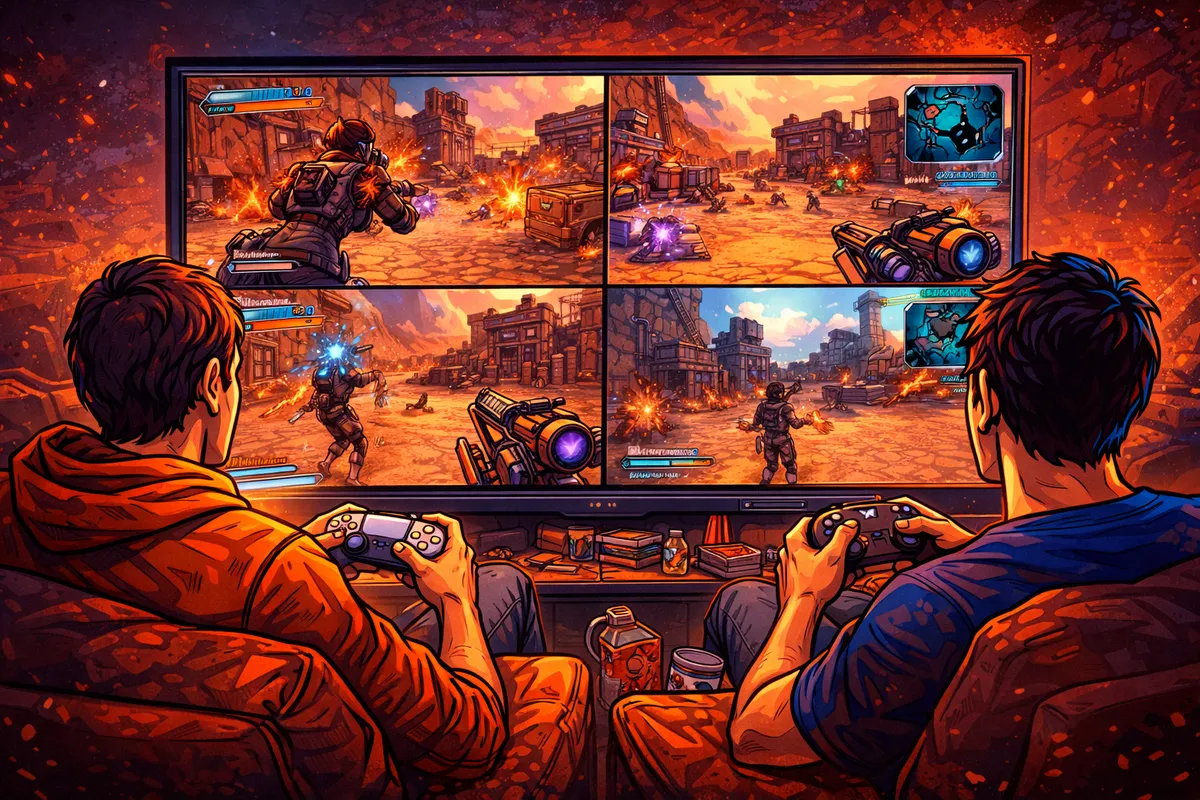
- Two-player split-screen couch co-op is supported on PlayStation 5 and Xbox Series X|S.
- Up to four players can play online co-op, and the game supports crossplay for online parties (with account setup requirements).
- Split-screen can combine with online co-op in a way that’s huge for friend groups: two people on one console (split-screen) can join with two other online players to make a four-player party.
- Borderlands 4 co-op design includes modern “keep the party together” systems, including:
- Instanced loot (each player gets their own drops)
- Dynamic level scaling
- Individual difficulty settings per player
- Fast travel to other players (helpful in a big, seamless world)
- Drop-in / drop-out co-op flow
Confirmed split-screen layout options:
- On PS5 and Xbox Series X|S, split-screen supports vertical or horizontal orientation. That matters more than it sounds—comfort, readability, motion sensitivity, and aiming comfort can change dramatically depending on your TV size and viewing distance.
Confirmed “party settings” that affect co-op sessions:
- Borderlands 4 includes session controls like Party Privacy options (including a Local Only option) and a Personal Crossplay toggle.
- A practical gotcha: if anyone in the party has crossplay disabled, the entire session can effectively lose crossplay for that session. This is one of the biggest reasons “we can’t join each other” happens in cross-platform groups.
If you only read one section, read this: Borderlands 4 couch co-op is real and supported—but it’s intentionally targeted at PS5 and Xbox Series X|S for local split-screen. If couch co-op is the reason you’re buying, that single fact should drive your platform decision.
Platforms That Support Couch Co-Op (and What That Really Means)
When players say “Does it have couch co-op?” they often mean three different things:
- Local split-screen (two people on the same console + same TV)
- Online co-op (each person on their own system)
- A hybrid party (two local + online friends)
Borderlands 4 supports these in a specific way, and it’s important to match your expectations with what’s actually listed.
Local split-screen couch co-op:
- Supported: PS5, Xbox Series X|S (two players)
- Not listed as supported for local split-screen: other platforms are not presented as split-screen platforms in official co-op summaries. If you’re shopping with couch co-op as your priority, treat PS5 and Xbox Series X|S as the “safe picks.”
Online co-op with crossplay:
- Supported: online co-op up to four players, with crossplay available when your accounts are linked correctly.
- Practical note: online co-op can still require platform-level online subscriptions on consoles, even if the game supports crossplay.
Hybrid co-op (two local + online friends):
- This is one of Borderlands 4’s best co-op quality-of-life ideas: your split-screen duo can still join online friends to fill out a four-player party. For groups with couples or siblings in the same home, this is the difference between “we can’t all play together” and “we have a full squad.”
What players want clarified here (because it affects purchases):
- Will local split-screen ever expand beyond two players?
- Older Borderlands entries and versions have offered more local players in certain cases, so people naturally ask. Right now, couch co-op is clearly framed as two-player split-screen on PS5 and Xbox Series X|S, so plan around two unless official updates say otherwise.
- Will PC ever get official split-screen support?
- This is a long-running request in many franchises, and players still ask—especially because plenty of people have a powerful PC connected to a living-room TV. But since local split-screen is only explicitly highlighted for PS5 and Xbox Series X|S, don’t buy PC expecting built-in couch co-op.
Bottom line: If “one copy, one console, two controllers” is your goal, PS5 and Xbox Series X|S are the practical choices. Everything else should be viewed as online co-op first.
Two Local Players + Two Online Friends: The “Best of Both Worlds” Party
For a lot of households, the perfect Borderlands night looks like this:
- Two people on the couch (split-screen)
- Two friends online (their own systems)
- Full party chaos, full loot grind, full boss melting
Borderlands 4’s co-op setup explicitly supports that concept: two split-screen duos can link up online to form a full party of four. That means you can do:
- Couch duo + two online friends
- Couch duo + couch duo (two homes, each with two local players)
- Or rotate who hosts based on whose internet is best
What to confirm and prepare before you try this (so it doesn’t turn into a 45-minute lobby fight):
- Everyone links their SHiFT account (or whatever the game requests for crossplay)
- Everyone checks crossplay is enabled (and remembers: one person turning it off can block crossplay for the party session)
- Party Privacy matches the goal
- If you want randoms to join: Public
- If you want only your group: Invite Only / Friends Only
- If you want purely local: Local Only
- Host chooses the cleanest, simplest setup
- The host should be the person with the best stability (not just the fastest speed test—stability matters more than peak speed)
- If your couch is the “main hub,” host from the console that’s physically wired to the router if possible
Why hybrid parties are a big deal for split-screen players:
Split-screen co-op is often treated like a “bonus mode” in modern games. Borderlands 4 treating it as part of a wider co-op ecosystem (instead of isolating it) is exactly what couch co-op fans have been begging for.
Crossplay and SHiFT: How to Avoid the #1 Co-Op Setup Mistake
Most “crossplay doesn’t work” situations are not actually bugs. They’re mismatched settings.
Here’s the fastest way to prevent co-op frustration:
Crossplay setup rules that actually matter:
- Link and sign into the required account system for cross-platform play (commonly SHiFT in Borderlands).
- In Session Settings, set:
- Party Privacy to the correct mode for your plan
- Personal Crossplay to On (if you want crossplay)
- Remember the biggest hidden rule:
- If anyone in your party has crossplay disabled, crossplay can be disabled for that entire session.
This explains so many situations where:
- “We played together yesterday, why can’t we today?”
- “It works when I host, not when you host.”
- “We can invite, but joining fails.”
Best practice for friend groups:
- Decide one default rule: Crossplay On for everyone unless you’re doing a same-platform night.
- If one person prefers crossplay off, plan a separate session type so it doesn’t silently block the group.
Couch co-op specific tip:
- If you’re playing split-screen locally and also inviting online friends, check that both local players are properly signed in (and not stuck in a limited “guest” state if your platform treats guests differently). Hybrid co-op works best when each player is treated as a full player profile.
Split-Screen Layout: Vertical vs Horizontal and Comfort Settings
“Vertical or horizontal split-screen” sounds like a tiny preference—until you play for two hours and someone gets a headache, can’t read loot cards, or feels motion sick.
Vertical split-screen tends to be better when:
- You’re on a wide TV (most modern living rooms)
- Each player wants a taller field of view for aiming and vertical movement
- You sit fairly close to the screen and want the UI less squished
Horizontal split-screen tends to be better when:
- You prefer a wider view for scanning left/right
- You’re playing on a smaller screen and sit farther back
- The game’s UI and text look cleaner with more horizontal space
Player comfort settings that matter more in split-screen than solo:
- Subtitles on + larger subtitle size (split-screen chaos gets loud)
- HUD scaling and text size (if available, push readability higher than you would in solo)
- Sensitivity tuning for both players (split-screen often reveals mismatched aim comfort fast)
- Motion blur and camera shake (if either player is sensitive, reduce these early)
- Field of View choices (higher FOV can feel better for some players, but can also impact performance and clarity)
A realistic couch co-op rule: optimize for comfort and readability first, graphics second. If the UI is hard to read, your co-op night turns into “menu fighting” instead of “loot hunting.”
Performance Expectations: Smooth FPS Without Killing Readability
Split-screen is one of the most demanding ways to run a game because the system is effectively rendering and updating two viewpoints at the same time. Even strong consoles can feel it.
What players want confirmed (in plain language):
- What frame rate targets are realistic in split-screen
- Whether there’s a reliable “performance-first” option
- Which settings are shared between both players (so you don’t get conflicting preferences)
- How FOV changes affect performance and clarity
What’s worth doing immediately for smoother couch co-op:
- Choose performance-friendly graphics mode if the console version offers it
- Reduce visual features that add blur or noise (motion blur, heavy film grain) if available
- Treat FOV increases carefully: bigger FOV can improve comfort for some players but may also reduce performance, and it can make targets feel smaller on a half screen
One specific split-screen detail many people miss:
Some settings can apply to both players at once in split-screen (especially vehicle-related view settings). That means one player changing a “comfort” slider might unintentionally affect the other. The best approach is to agree on shared comfort settings before you start serious missions.
The real couch co-op performance goal:
Not “max graphics.” The goal is:
- stable gameplay
- readable UI
- predictable aiming feel
- minimal hitching during firefights
If you nail those four, split-screen feels great—even if the picture isn’t at the fanciest setting.
UI and Inventory in Split-Screen: What’s Improved and What Players Still Want
If couch co-op has a universal enemy, it’s not a raid boss—it’s the inventory screen.
In split-screen, menus must be:
- readable
- fast to navigate
- consistent (no random input quirks)
- fair (no “Player 1 gets the good UI, Player 2 gets the tiny UI” energy)
What’s already been addressed in post-launch updates (the kind of fixes that matter for couch co-op):
- Improvements to how menus display and layer in vertical split-screen
- Fixes to prevent item cards overlapping when comparing items in horizontal split-screen
- Adjustments to scrolling behaviors in split-screen menus
Those changes matter because split-screen is where UI issues become impossible to ignore.
Known split-screen UI pain points players still want cleaned up:
- Inventory item info clarity (especially when comparing gear quickly)
- Consistent access to item detail features across level transitions
- Smooth scrolling and navigation in specialized tabs (like reward tracks)
Practical advice for couch co-op households:
- Do a quick “menu test” before you commit to a long session:
- Open inventory
- Compare two items
- Check that both players can read rarity, stats, and effects comfortably
- Verify scrolling behaves normally
- If something feels off after a transition (like moving to a new area), don’t waste 30 minutes suffering:
- Back out to a safe point and re-enter the session if needed
- If an issue persists, restart the session before it ruins the night
Players don’t want split-screen treated as a side mode—they want it treated like a first-class way to play. The good news is: the kinds of patch notes and support acknowledgements that mention split-screen UI at all usually mean it’s being actively worked on, not ignored.
Loot Rules in Couch Co-Op: Instanced Drops, Trading, and No-Drama Sharing
Borderlands co-op lives and dies on loot rules. If the loot system creates tension, couch co-op becomes couch conflict.
Confirmed direction that matters:
- Borderlands 4 is built around instanced loot in co-op—meaning each player gets their own drops rather than fighting over the same item on the ground.
Why instanced loot is a big couch co-op win:
- No arguing over who “stole” the Legendary
- No awkward “I picked it up by accident”
- No slower players feeling punished
- Better co-op flow when you’re farming bosses or running fast content
What players still want confirmed clearly (because every Borderlands group plays differently):
- Whether there’s any optional mode for shared/classic loot behavior
- How trading and sharing is meant to work if you still want to “gift” gear
- How loot interacts with level scaling (so drops feel relevant for both players)
Best practice for couch co-op peace:
- Agree on one simple rule before you start:
- “We keep what we get unless someone asks for a specific type of gear.”
- Create a short “wish list” for each player:
- Player A: sniper-focused items, crit bonuses, shield type preference
- Player B: elemental focus, splash focus, movement bonuses, etc.
- Do a quick trade/check-in every 30–45 minutes (or after bosses), not every five minutes.
Instanced loot doesn’t remove teamwork—it removes the friction. Couch co-op is better when you’re cheering each other’s drops, not competing for them.
Difficulty, Level Scaling, and Keeping Everyone Useful
A classic co-op problem is level gaps:
- One player grinds more
- The other player plays casually
- Suddenly one person melts everything and the other feels like a spectator
Borderlands 4’s co-op design directly targets that issue.
Co-op features that keep mixed-skill groups fun:
- Dynamic level scaling helps different levels contribute meaningfully.
- Individual difficulty settings let each player tune challenge without forcing the entire party to match one “party difficulty.”
This is one of the best kinds of co-op design because it supports real households:
- a veteran player + a newer player
- a “build nerd” + a “I just like shooting stuff” player
- two people who play at different tempos
What players want confirmed in practice (because the details matter):
- How far the scaling goes (does it always feel fair?)
- Whether certain activities lock difficulty in a way that overrides personal settings
- How scaling interacts with boss encounters and endgame modifiers
Practical couch co-op setup that usually feels best:
- The more experienced player sets difficulty to feel rewarding
- The newer player sets difficulty to feel manageable
- Both players agree on pacing: “Are we exploring, or rushing objectives?”
If your goal is “fun co-op night,” the win condition is not “maximum difficulty.” The win condition is:
- both players feel useful
- both players feel rewarded
- neither player feels dragged forward or held back
Campaign Progress, Saves, and Profiles: The Confirmations Players Need
This is the category that causes the most anxiety for couch co-op buyers:
- “Will Player 2’s character save properly?”
- “Do we both keep mission progress?”
- “If we only play together, will one person end up behind?”
- “If we swap who hosts, do we break anything?”
Players want these answers clearly because couch co-op is often the “main save file,” not a side activity.
What players generally want confirmed (and why it matters):
- Separate character saving for both players
- Couch co-op is best when each player has their own character identity and progression that persists reliably.
- How mission and world progress is recorded
- Some games track progress primarily on the host’s world state; others share progress more broadly; some do it in a hybrid way. Players want the rules stated clearly so they can plan who hosts and how they rotate sessions.
- How map discovery and fast travel points behave
- In co-op games, it’s common for fast travel points or discovery progress to be tied to the world state you’re in. Players want clarity so they don’t finish a co-op night and then feel like their solo map is “empty.”
- Whether guest profiles are safe for long-term play
- On consoles, “guest” participation can sometimes be limited. Couch co-op households want to know whether a guest can save everything reliably or whether both players should always sign into full profiles.
Best practice that avoids most saving headaches:
- Use two full console profiles/accounts whenever possible.
- It’s the safest way to ensure each player’s character, settings, and progression have a clear “owner” and don’t get lost in guest limitations.
- Decide one simple hosting strategy:
- Same host every time if you want the most consistent world state
- Alternate hosts only if both players are comfortable with how progress and unlocks behave
This is one of those topics where “confirmed specifics” are worth watching for in official support notes and updates, because co-op save behavior can involve edge cases that get refined after launch.
Couch Co-Op Night Checklist: The Quick Setup Before You Press Play
Use this checklist before the first serious session. It prevents the most common couch co-op problems.
1) Accounts and controllers
- Two controllers charged
- Two profiles signed in (recommended for reliable saving)
- Controller vibration and sensitivity adjusted per player
2) Split-screen layout
- Try vertical first on a wide TV
- If aiming feels cramped or UI feels odd, try horizontal
- Pick the layout that both players can tolerate for 2+ hours
3) Readability
- Subtitles on
- Increase subtitle size if the option exists
- Raise HUD/text size if there’s a slider
4) Session settings
- Party Privacy set correctly (Friends Only / Invite Only / Public / Local Only)
- Crossplay settings agreed on
- If inviting online friends, confirm everyone has crossplay enabled
5) Comfort settings
- Reduce motion blur/camera shake if either player is sensitive
- Confirm FOV preferences carefully (especially if performance dips happen)
6) Quick “UI test”
- Both players open inventory
- Compare an item
- Scroll a few menus
- Confirm nothing feels broken before committing to long missions
A five-minute setup saves an hour of frustration later.
Couch Co-Op Etiquette: Tiny Habits That Make Long Sessions Better
Couch co-op is part gameplay, part teamwork, part “don’t accidentally ruin your partner’s fun.”
The best co-op habits are simple:
- Call out your intent (“I’m opening the menu,” “I’m selling,” “I’m respeccing”)
- Don’t sprint objectives if the other player likes exploring
- Agree on loot rhythm (check drops after bosses, not every minute)
- Use fast travel thoughtfully (don’t yank the other player mid-fight)
- Share builds intentionally
- One player focuses crowd control / survivability
- One player focuses burst damage / boss burn
- You’ll feel stronger together without competing for the same role
A couch co-op secret:
Most “bad split-screen nights” aren’t caused by the game—they’re caused by two people wanting different experiences (rush vs explore, optimize vs chill). If you align expectations early, everything feels smoother.
BoostRoom: Make Your Co-Op Progress Faster and Cleaner
If your co-op group has limited time but big goals—endgame builds, boss farming, raid-ready loadouts, or just catching up to friends—BoostRoom is built for that reality.
With BoostRoom, you can:
- Save co-op nights for the fun parts (missions, bosses, discoveries) instead of getting stuck in slow grinds
- Get build direction that fits your playstyle (not just “copy this meta,” but why it works and how to adapt it)
- Reduce trial-and-error time by focusing on efficient progression decisions early
Borderlands is at its best when your squad feels powerful and your sessions feel productive. If you want your couch co-op to stay in the “laughing and looting” zone, BoostRoom helps you cut the friction and get to the good stuff sooner.
FAQ
Q: Does Borderlands 4 have split-screen couch co-op?
A: Yes—two-player split-screen couch co-op is supported on PlayStation 5 and Xbox Series X|S.
Q: Can we play split-screen locally and still join online friends?
A: Yes. Borderlands 4 supports combining a split-screen duo with online players so you can form a four-player party (for example, 2 local + 2 online).
Q: Is split-screen available on PC?
A: Local split-screen is explicitly presented for PS5 and Xbox Series X|S. If couch co-op is your priority, choose a console version that lists split-screen support.
Q: Can we choose vertical or horizontal split-screen?
A: Yes—split-screen orientation can be vertical or horizontal on the supported consoles.
Q: How many players does Borderlands 4 co-op support online?
A: Up to four players can play online co-op.
Q: Do we need crossplay for couch co-op?
A: Not for purely local play. Crossplay matters when you’re playing online with friends on different platforms.
Q: Why can’t my friend join when crossplay “should” work?
A: The most common reason is mismatched crossplay settings. If anyone in the party has crossplay disabled, it can disable crossplay for the session.
Q: Is loot shared in couch co-op?
A: Co-op is designed around instanced loot so each player gets their own drops, reducing loot conflicts and making farming smoother.
Q: What should we set first for a smooth split-screen experience?
A: Pick the best split orientation for your TV, increase readability (subtitles/HUD size), and set a performance-friendly mode if available—then test inventory and item comparison before a long session.



