Route: What “Best Settings” Really Means (So You Don’t Copy the Wrong Stuff)
There is no single perfect sensitivity number that works for everyone — because your phone size, your thumb range, your grip, and your role all change how the game feels. What you actually want is a setup that hits these four outcomes:
- You always hit the right target (hero, minion, turret, jungle creep — on purpose).
- Your camera moves as far as your brain expects (no under-swipe, no over-swipe).
- Your skill aiming is fast but stable (you can flick and still place accurately).
- Your UI prevents “fat-finger throws” (Retribution, Flicker, Wind of Nature, Winter Truncheon, Purify — never missed).
So when someone says “use pro settings,” ignore the vibe and focus on the result: fewer misclicks, cleaner spacing, better vision, and more consistent teamfights.
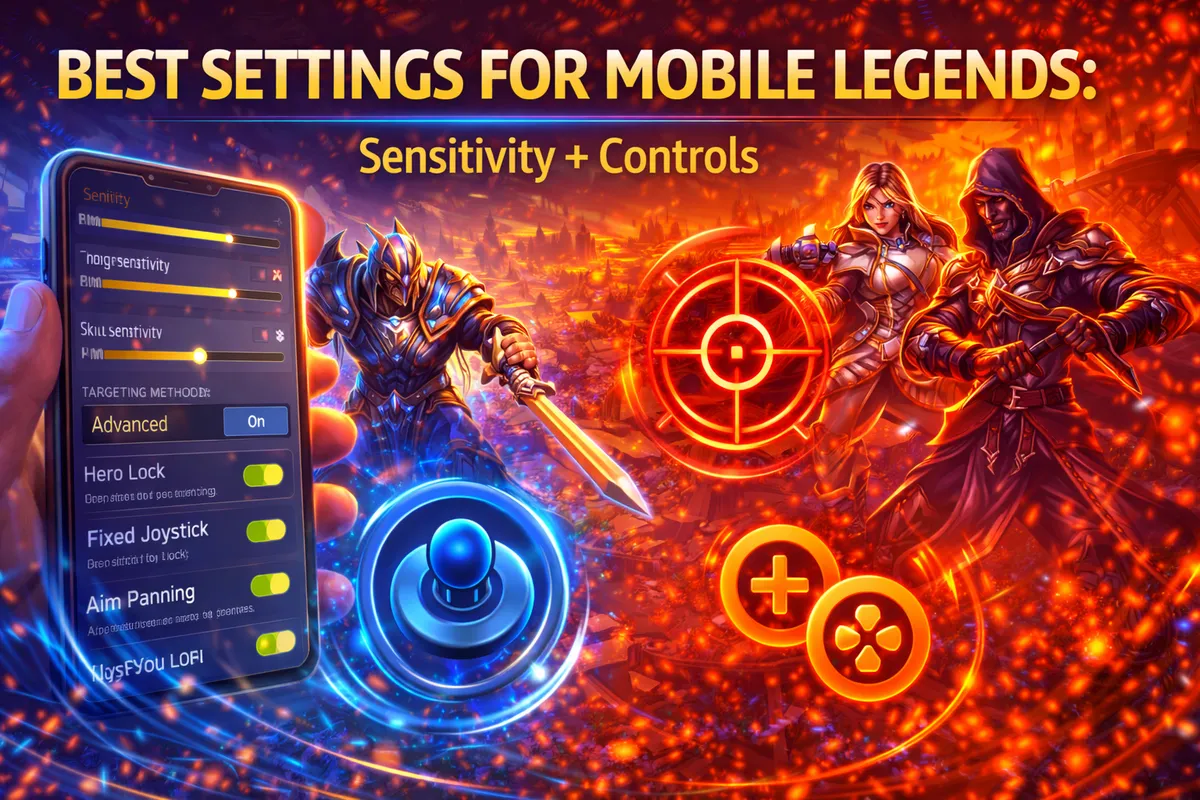
Route: The Two Biggest Setting Mistakes That Keep Players Stuck
Mistake #1: Staying on default targeting and hoping it works.
In chaotic fights, default targeting often makes you hit what’s closest — which is usually the tank or a minion wave — while the squishy carry survives.
Mistake #2: Cranking sensitivity too high to feel “fast.”
High sensitivity feels cool until you try to aim a key skillshot or pan camera while kiting. Then you over-swipe and lose the target, or you drag the skill indicator past your intended line.
The fix is simple: build a stable baseline first, then adjust in small steps while testing in real situations (lane kiting, jungle pathing, teamfight camera panning, long-range skill aiming).
Route: Your Goal Setup (The “Ranked Ready” Baseline)
Before we go deep, here’s the baseline most competitive players benefit from:
- High camera height so you see more of the map without moving.
- Advanced targeting method so you can intentionally hit minions/turrets when needed.
- Hero lock mode ON so you can pick the correct hero in teamfights.
- Aim panning ON if you play long-range skillshot heroes (hooks/arrows/snipes).
- Assisted aiming + attack assist ON if it improves your consistency (especially for poking and basic attacks).
- Fixed joystick so movement becomes muscle memory.
- Cancel cast button ON and easy to press.
- Auto build / auto skill level-up OFF so you adapt properly.
- UI cleaned up so you can see fights and press the right buttons instantly.
- Performance stable (stable FPS beats pretty graphics every single time).
Now let’s build it properly — sensitivity + controls — with role-based tweaks.
Loot: Best Sensitivity Settings in MLBB (Camera + Skill Feel)
Sensitivity has one job: make your camera and aiming match your intention. If you swipe one thumb-length, you should get the same camera movement every time — not sometimes fast, sometimes slow.
Start with these sensitivity priorities (most important first):
- Camera sensitivity (how quickly your view moves when you drag)
- Skill aim sensitivity (how stable your aiming feels when dragging skill indicators)
- “Micro” aiming consistency (how easy it is to place a skill without shaking)
A simple ranked baseline that works for most players
- Set camera sensitivity slightly above the midpoint first.
- Play 3–5 test drills (listed later).
- Increase or decrease in small steps until you stop “fighting your camera.”
How to know your camera sensitivity is too low
- You can’t check bushes fast enough without repeated swipes.
- You lose enemies during chases because your camera lags behind your intention.
- You feel “stuck” when trying to scan river entrances before Turtle/Lord fights.
How to know your camera sensitivity is too high
- You overshoot the area you want to look at.
- Your screen shakes around during teamfights because tiny thumb movements move the camera too much.
- You miss long-range skillshots because panning while aiming feels jumpy.
Role-based sensitivity feel (what you should aim for)
- Assassin/Jungle: slightly higher camera sensitivity to track fast dashes and repositioning.
- Marksman/Gold: moderate sensitivity so your kiting stays stable and your aim doesn’t wobble.
- Mage/Mid: medium-to-high depending on whether you play long-range poke or short-range burst.
- Roam/Tank: medium sensitivity, but prioritize camera control (you must check fog constantly).
Aim panning sensitivity reality
If you enable aim panning, the game can shift your camera while you’re aiming certain skills. That’s great for vision and landing skillshots — but it can feel uncomfortable if your sensitivity is too high. If aim panning makes you dizzy or “lose your hero,” slightly reduce camera sensitivity until it feels natural.
Loot: Best Control Settings (Targeting + Lock + Aiming)
Controls decide whether you hit the enemy carry… or the minion that’s politely standing nearby.
Targeting Method: The setting that stops 50% of misclick throws
Use “Advanced” targeting method so you can choose minions or turrets with basic attacks when needed (and avoid accidental turret aggro when a hero is nearby). This is especially important for:
- tower dives
- last-hitting under turret
- pushing while enemies hover near your wave
- objective fights where you must not hit the wrong target
Targeting Priority: Lowest HP vs Closest (when each one wins games)
This setting decides which hero your auto-target prefers when you tap basic attack without locking a portrait.
- Lowest HP is usually best for marksmen and assassins, because your job is to finish squishy targets and secure kills.
- Closest is often better for melee fighters/tanks, because you need reliable engagement range and you’re usually dealing with whoever is in front of you.
If you duo queue or scrim with structure, you can even switch priority depending on your hero pool — but don’t overcomplicate it. Pick what matches your role most of the time.
Hero Lock Mode: The “hit the correct hero” button
Turn Hero Lock Mode ON so you can select an enemy hero portrait during teamfights. This is one of the highest value settings in the game because it solves the classic ranked problem:
- the enemy tank walks forward
- your auto-target hits the tank
- their gold laner free-hits and wins the fight
With hero lock, you choose the real threat.
Skill Smart Targeting + Basic Attack Smart Targeting: Use carefully
Smart targeting can help with farming and some unit-targeted spells — but it can also conflict with hero lock and cause weird target swaps.
A practical, consistent approach:
- If you rely on Hero Lock Mode for teamfights, keep smart targeting features off for cleaner manual control.
- If you jungle often, you can keep basic attack smart targeting ON for smoother farming — but be strict about using hero lock in fights so you don’t “auto-hit the wrong thing.”
Assisted Aiming Mode + Attack Assist: Consistency tools, not “training wheels”
These options can make your pokes and basic attacks more consistent, especially when targets are moving unpredictably. If enabling them makes you land more hits with less effort, use them — ranked is about winning, not ego.
Aim Panning: Mandatory for long-range skillshot players
Aim panning increases your vision while aiming certain skills, which helps you land:
- hooks
- arrows
- snipes
- long-range zoning shots
If you play heroes that rely on long-range aiming, aim panning is one of the best “free upgrades” you can turn on.
Loot: Joystick and Movement Settings (The “Stop Walking Into Death” Section)
Movement is where most players lose fights without realizing it. If your joystick setup is inconsistent, your hero will stutter, drift, or accidentally step forward when you’re trying to kite.
Fixed joystick: the muscle memory choice
A fixed joystick creates consistent thumb placement. That consistency becomes huge when you’re:
- kiting as marksman
- controlling jungle pathing and Retribution timing
- dodging skillshots in teamfights
Joystick deadzone, moving pursuit, close pursuit (what to watch for)
Depending on your version and settings menu, you may see movement options such as:
- deadzone (how much you must move your thumb before your hero moves)
- moving pursuit (your hero “auto-chases” to keep attacking)
- close pursuit (similar chase behavior, depending on implementation)
Practical advice that keeps you safe:
- If you are a marksman or mage, auto-pursuit features can ruin kiting because your hero may step forward when you want to retreat. If you notice unwanted forward movement, turn pursuit behavior off.
- If you are a melee fighter/tank, a small amount of pursuit can feel helpful — but only if it doesn’t override your joystick intention.
- Deadzone should feel “responsive but not jittery.” If your hero drifts with tiny thumb movement, increase deadzone. If your hero feels delayed, decrease it.
Loot: Attack Buttons and Manual Target Buttons (Your Anti-Misclick Toolkit)
In serious ranked, you want the ability to choose exactly what you hit:
- enemy hero
- turret
- minion
- jungle creep
If your UI offers separate buttons (like “attack turret” / “attack minion”), keep them visible and spaced enough so you don’t press the wrong one.
Why this matters
- As gold laner, you sometimes want to hit turret even if a hero is nearby.
- As jungler, you must not accidentally hit a minion when trying to finish a hero.
- As roamer, you need precise basic attacks to not steal farm or break freezes unnecessarily.
Loot: Graphics, FPS, and Visibility Settings (Smooth > Pretty)
Aiming and reaction speed collapse when your FPS stutters. The best settings are the ones that stay stable in:
- 5v5 teamfights
- Lord/Turtle pit fights with many effects
- base defense chaos
Competitive visibility upgrades
- Camera height: High (see more, react earlier).
- Reduce visual clutter: effects like screen shake and heavy shadows can make fights harder to read.
- If your device struggles, lower graphics and prioritize stable frame rate.
Refresh rate / frame rate
If your device supports higher refresh rate options, higher can feel smoother — but only if your phone can hold it without overheating or dropping frames mid-fight. If you get stutters, reduce settings until stable.
Creep HP
If you play jungle, turn on creep HP visibility so you can time Retribution and track monster health more easily.
Loot: Network Settings That Actually Help (Without Overthinking)
Even perfect controls won’t save you if your ping spikes during engages.
Common in-game tools include:
- Speed Mode (can help reduce lag on stable connections)
- Network Boost (useful if you can combine Wi-Fi + mobile data)
Practical rule: don’t turn on everything blindly. Test in one match:
- If your ping becomes steadier, keep it on.
- If you disconnect more or feel unstable, turn it off and focus on connection quality first.
Loot: Custom UI Layout (Make Your Thumb Faster)
Custom UI is the most underrated “rank up” feature because it reduces mistakes.
Non-negotiable UI principles
- Make key buttons bigger: battle spell, Retribution, active items (Wind of Nature / Winter Truncheon / Immortality usage timing).
- Separate buttons that you confuse: basic attack vs skill 1/2/3, minion/turret attack, etc.
- Put Cancel Cast where your thumb can hit it instantly.
- Increase minimap size enough that you actually look at it.
- Lower UI opacity so fights are visible underneath your interface.
Role-based UI priorities
- Jungle: bigger Retribution + bigger map + clear damage text / creep HP
- Gold: bigger basic attack button + safer spacing + bigger Flicker/Purify + bigger active item
- Mid: comfortable skill wheel aiming + cancel cast accessible + map visible
- Roam: map bigger than you think + quick pings reachable + camera control comfortable
- EXP: balanced — you need both fight controls and map awareness
Loot: “Where Did HP Lock / HP Shift Go?” (If You Can’t Find It)
Some versions/updates changed how HP lock/shift is handled. If you’ve watched older guides and can’t find those toggles anymore, it may be because the game adjusted the setting behavior (for example, making it enabled by default instead of a toggle). The important part isn’t the name — it’s the outcome: you need clear HP information during:
- Lord/Turtle fights
- burst combos
- long-range execute plays
So if the toggle isn’t there, look for:
- any setting that shows clearer HP bars
- any targeting overlay options
- UI elements that display target HP consistently
Extraction: Copy-Paste “Best Settings” Profile (Then Tune in 10 Minutes)
Use this as your starting profile, then tune sensitivity.
Step 1: Vision + performance
- Camera height: High
- Prioritize stable FPS over max graphics
- Turn off distracting visual effects if they reduce clarity
- Turn on creep HP if you jungle
Step 2: Controls
- Targeting method: Advanced
- Hero lock mode: ON
- Targeting priority:
- Lowest HP for marksman/assassin
- Closest for tank/fighter
- Aim panning: ON if you use long-range skillshots
- Assisted aiming mode + attack assist: ON if it improves consistency for you
- Fixed joystick: ON
- Skill wheels setup: Maximized
- Cancel cast button: ON
- Auto skill level-up: OFF
- Auto purchase/build: OFF
Step 3: Custom UI
- Increase size for: battle spell, active item, Retribution
- Make minimap larger
- Reduce UI opacity until fights are readable
- Separate buttons to avoid fat-fingers
Now tune sensitivity.
Extraction: The Best Sensitivity Tuning Method (Works for Any Phone)
Do not guess. Test and adjust with a simple routine:
Drill A: Bush scan
- Stand mid lane in practice mode.
- Swipe to check both river bushes and return to your hero.
- If it takes multiple swipes, sensitivity is too low.
- If you overshoot and “lose” the location, sensitivity is too high.
Drill B: Kiting line
- Pick a marksman and kite a jungle creep.
- Your camera should stay stable while you move backward and attack.
- If your screen swings wildly, lower sensitivity or adjust joystick feel.
Drill C: Skillshot placement
- Use a long-range skill and aim at a fixed spot repeatedly.
- If your aim shakes, slightly lower sensitivity and/or adjust skill wheel comfort.
Drill D: Teamfight camera
- Spawn enemy bots and practice panning while casting.
- You should be able to track threats without dragging too far.
Adjustment rule
- Change only one thing at a time.
- Change in small steps.
- Stop when your gameplay feels “quiet” — meaning your fingers do what you want without drama.
Extraction: Role Presets (Fast Setup for Ranked)
Use these presets if you want quick results.
Jungle (Retribution reliability preset)
- Targeting: Advanced + hero lock ON
- Priority: Lowest HP (most junglers benefit in fights)
- UI: Retribution bigger, spell bigger, map bigger
- Sensitivity: slightly higher than your comfort baseline (so you can scan and collapse)
Gold lane (No-misclick carry preset)
- Targeting: Advanced + hero lock ON
- Priority: Lowest HP
- Pursuit/chase features: avoid if they ruin kiting
- UI: basic attack bigger, active item bigger, Purify/Flicker bigger
- Sensitivity: moderate (stability > speed)
Mid lane (Skill accuracy preset)
- Targeting: Advanced + hero lock ON
- Aim panning ON if you play long-range skillshots
- UI: skill wheels comfortable, cancel cast easy
- Sensitivity: moderate-to-high depending on hero range
Roam (Map control preset)
- Targeting: Advanced + hero lock ON
- Priority: Closest (often best for frontline engage)
- UI: minimap bigger than usual, pings reachable
- Sensitivity: moderate, but prioritize camera control comfort
EXP lane (Fight + rotate preset)
- Targeting: Advanced + hero lock ON
- Priority: Closest for many melee EXP heroes
- UI: balanced, but map still important
- Sensitivity: moderate
Extraction: Troubleshooting Common Setting Problems
“My hero keeps hitting minions during fights.”
- Turn on hero lock mode and use it.
- Use advanced targeting.
- Consider reducing smart targeting features if they conflict with your manual control.
- Space your attack buttons so you don’t tap “attack minion” by accident.
“I keep walking forward when I’m trying to kite.”
- Check any pursuit/chase movement options and disable them if they override your joystick intent.
- Use fixed joystick.
- Adjust deadzone so your hero doesn’t drift.
“Aim panning makes me dizzy.”
- Reduce camera sensitivity slightly.
- Use aim panning only on heroes where it gives clear value (hooks/snipes).
- Make sure your UI opacity and button clutter aren’t forcing extra camera movement.
“I miss Retribution / Flicker / Purify in clutch moments.”
- Make the button bigger.
- Move it to a spot your thumb hits naturally.
- Put cancel cast where you can reach it quickly so you don’t panic-cast.
“My FPS drops in teamfights.”
- Lower graphics, disable heavy effects, and prioritize stable frame rate.
- Close background apps on your phone before playing.
- If high refresh rate causes overheating or stutters, lower it for stability.
“My ping spikes randomly.”
- Try Speed Mode and/or Network Boost, then test for stability.
- Prefer stable Wi-Fi; avoid playing while your device is downloading or updating.
- If the game feels worse with boosts, turn them off and focus on connection quality.
Practical Rules: The Settings Habits That Make You Instantly Better
- Stable FPS beats max graphics every time.
- High camera height is free map awareness.
- Advanced targeting prevents dumb turret/minion mistakes.
- Hero lock mode turns teamfights from chaos into control.
- Use Lowest HP priority when your job is to finish squishies.
- Use Closest priority when your job is to frontline and engage.
- Keep fixed joystick if you want consistent movement.
- If your hero steps forward when you kite, disable pursuit-style movement settings.
- Aim panning is huge for hooks/snipes — don’t ignore it if you play skillshots.
- If aim panning feels weird, lower camera sensitivity slightly.
- Don’t copy a sensitivity number blindly — tune it with drills.
- Change one setting at a time so you know what helped.
- Bigger minimap = better rotations = more wins.
- Lower UI opacity so you can see fights under the interface.
- Make Retribution bigger if you jungle.
- Make active items bigger if you carry (Wind of Nature / Winter Truncheon timing wins games).
- Put Cancel Cast where your thumb can hit it instantly.
- Turn off auto build so you adapt (anti-heal, defense, penetration).
- Turn off auto level-up so you can prioritize what the match needs.
- If you miss skills often, reduce sensitivity slightly before blaming mechanics.
- If you can’t scan bushes fast, raise sensitivity slightly before blaming map awareness.
- If you over-pan and get lost, your sensitivity is too high.
- If your targeting switches mid-fight, rely on hero lock and manual control.
- Don’t cram buttons together — misclicks lose fights.
- If you tilt from misinputs, fix UI first (it’s the fastest improvement).
- Test settings in practice mode, then validate in ranked.
- Re-check settings after major patches (menus and toggles can change).
- If a toggle disappears, focus on outcome (HP visibility, targeting control), not the exact name.
- Don’t chase “ultra” FPS if it causes stutters — stable is king.
- Every time you die, ask: was it decision-making, or did my controls betray me?
BoostRoom: Want Settings That Match Your Role and Hero Pool Exactly?
Copying “best settings” helps, but the fastest improvement happens when your controls match your exact playstyle:
- assassin players need faster camera checks and clean skill wheel placement for combos
- marksmen need stable kiting spacing and zero misclick potential
- roamers need maximum map clarity and fast pings
- junglers need objective reliability (Retribution comfort, creep HP clarity, pit awareness)
BoostRoom can help you build a personal settings + UI layout that fits your device, your grip, and your main roles — and then tie it to real ranked habits (objective timing, positioning, target selection). If you want faster climbing with fewer “I misclicked” losses, dialing in your setup is one of the most cost-effective upgrades you can make.
FAQ
What are the best MLBB settings for most players?
High camera height, advanced targeting method, hero lock mode on, fixed joystick, cancel cast on, and stable FPS-focused graphics. Then tune camera sensitivity slightly above midpoint and adjust from there.
Should I use Lowest HP or Closest Target?
Lowest HP is usually better for marksmen and assassins who need to finish squishy targets. Closest target often fits tanks and melee fighters who need reliable engagement range.
Should I turn on Hero Lock Mode?
Yes. Hero lock mode is one of the best ways to prevent targeting the wrong enemy in teamfights. It helps you focus the real threat.
Should I enable Aim Panning?
Enable it if you use long-range skillshots (hooks, arrows, snipes). It gives more vision while aiming. If it feels uncomfortable, lower camera sensitivity slightly.
Do Assisted Aiming Mode and Attack Assist make you worse?
No. If they increase your consistency, they increase your win rate. Use what makes you land more hits and play cleaner.
Why can’t I find HP Lock or HP Shift in my settings?
Some versions changed how HP lock/shift is handled. If you can’t find the toggle, focus on achieving the same result: clear HP visibility and reliable targeting during objectives and fights.
What graphics settings should I use for ranked?
Use whatever keeps your FPS stable in teamfights. If you get stutters, lower graphics and disable heavy effects. Stable performance is more important than visuals.
What should I resize in Custom UI first?
Battle spell, active item, Retribution (if jungling), minimap, and Cancel Cast. Then space out buttons that you misclick.
Do Speed Mode and Network Boost help?
They can help in some situations, especially if your connection is stable. Test them and keep the option that gives steadier ping without disconnects.



